

Create a prompt
A prompt in EvalGate is a versioned, content-hashed message template. You author drafts, test them, send them for review, and publish an approved version to a protected environment.Step 1 — Open Prompt Hub
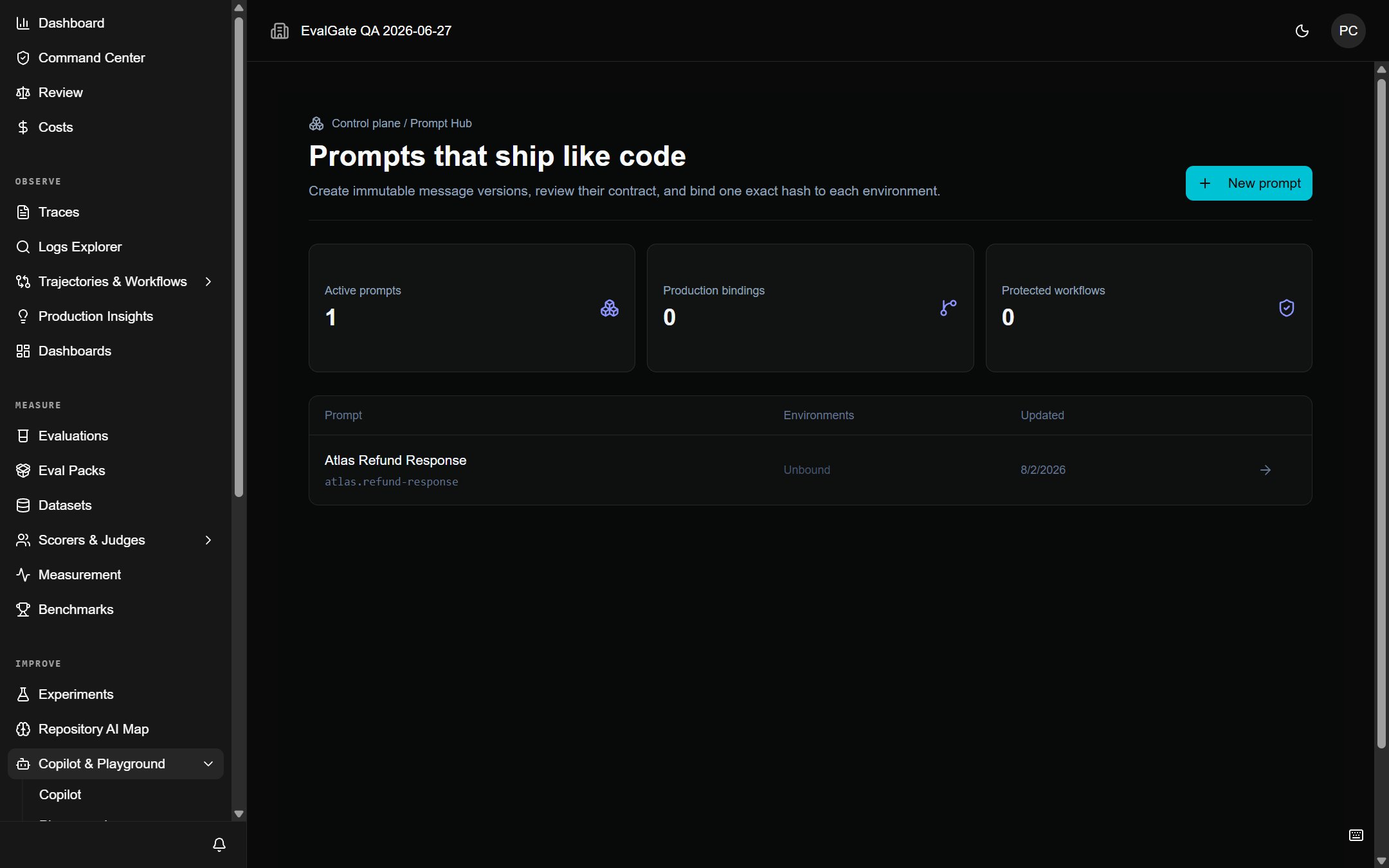
Open Prompts from Search (⌘K / Ctrl+K), then click New prompt.
Step 2 — Author the first version
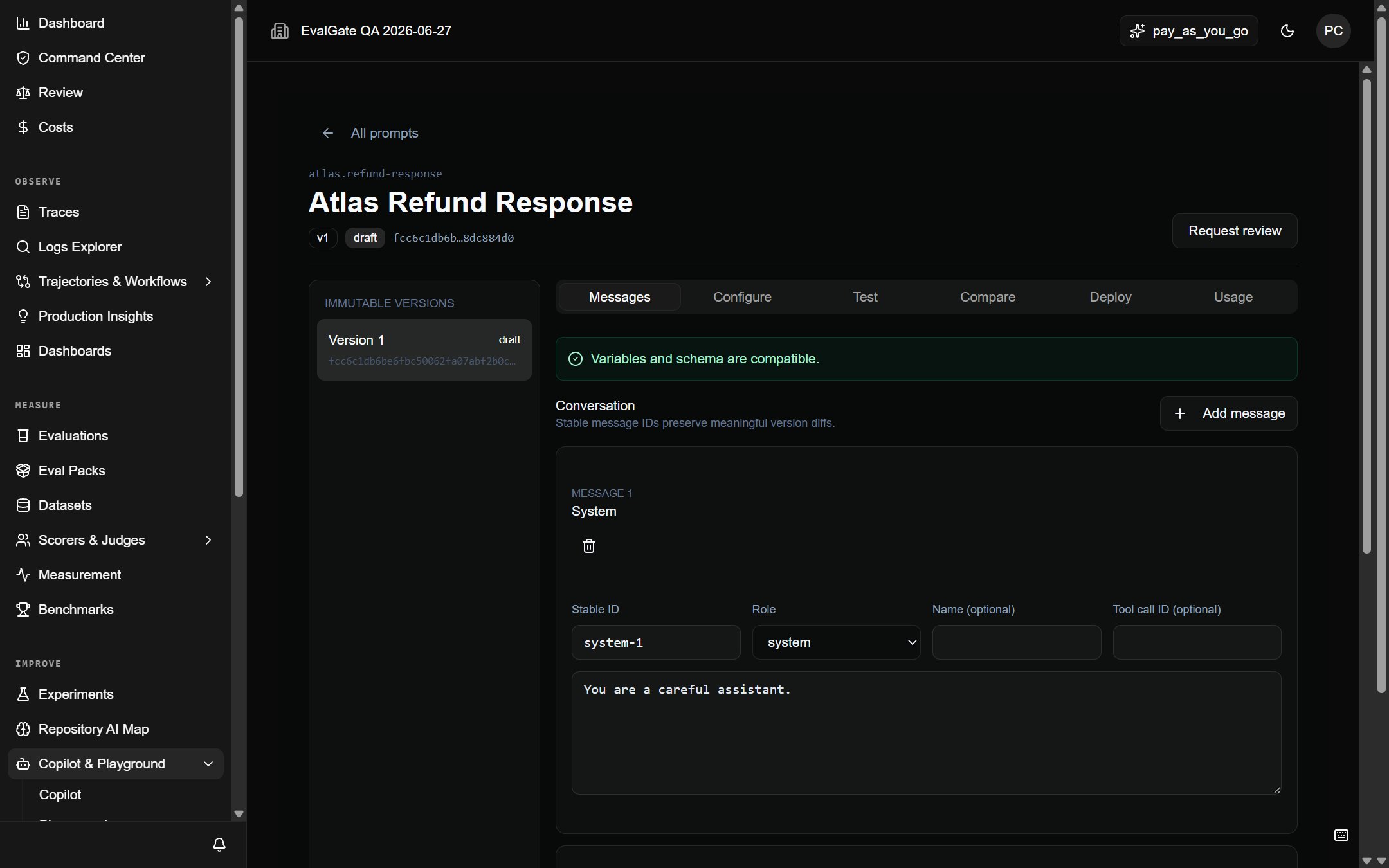
Give the prompt a stable key (for example,checkout-assistant-system). The
key is the public identity; versions are immutable and content-hashed under it.
Write the message content on the Messages tab. You can include tool
definitions and variables. Click Save as new version to save the draft.
Step 3 — Test against the Gateway
Before review, open the Test tab and click Run test to run the prompt through the Model Gateway and confirm the model accepts it. This needs a connected provider key.Step 4 — Submit for review
Click Request review. A reviewer with theprompt:publish permission can
click Approve. Until then, it is a draft and cannot be served by a
protected alias.
Step 5 — Publish to an environment
After approval, click Publish staging or Publish production to bind the version to that protected environment alias. The alias resolves that exact version — never a draft — and every consumer retains the exactversionId and contentHash.